Rummy APK Not Installing on Android: Causes and Fixes
When a Rummy APK will not install, repeatedly downloading the same file is rarely the best first step. Android may reject an installation because the package is incomplete, the device lacks storage, an older version conflicts with it, or the app does not support the device.
This guide starts with low-risk checks. It does not recommend bypassing Android warnings or disabling security protection. If the file source or developer cannot be verified, stop rather than forcing the installation.
Why a Rummy APK May Not Install
The message “App not installed” can describe several problems. The APK may be damaged, built for a newer Android release, signed differently from an existing version, or designed for another processor type. Android may also block installation from a browser that has not been allowed to install unknown apps.
Note the exact message and when it appears. A failure before the installation screen often points to the download. A failure near the end is more likely to involve compatibility, storage, signatures, or an existing installation.
Check Android Compatibility
Compare your Android version with the app’s stated minimum requirement under Settings and About phone. Menu names vary by manufacturer. An app built for newer Android components may not install on an older phone, while a very old APK can fail on a recent device because Android requirements have changed.
Confirm Available Storage
The phone needs more free space than the APK’s displayed file size because Android uses temporary space to unpack and optimize it. Remove unneeded downloads using normal device tools, then retry. Avoid deleting application data unless you understand what will be lost.
Download the APK Again
An interrupted connection can create an incomplete file that still appears in Downloads. Delete only the failed APK, return to the verified source, and download it once more using a stable connection.
- Check that the file uses the .apk extension.
- Compare its approximate size with the provider’s information.
- Do not rename a ZIP, HTML, or unknown file to .apk.
- Avoid files opened from advertisements or unexpected redirects.
Check for an Older-Version Conflict
Android normally expects an update to use the same package name and signing identity. A differently signed APK cannot safely replace an existing app even when the display name looks identical.
Before uninstalling an older version, confirm how account access and locally stored information can be recovered. Make sure you know the correct login method. Uninstalling can remove local app data.
Review “Install Unknown Apps” Permission
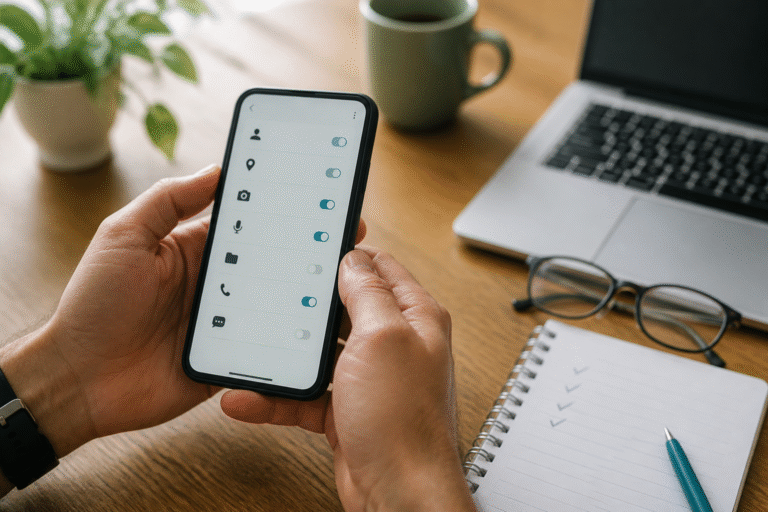
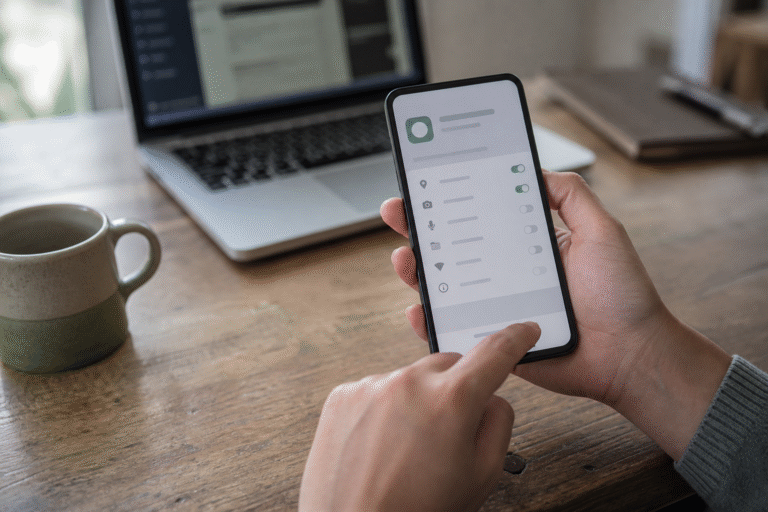
Recent Android versions grant installation permission to a specific source such as Chrome or a file manager. If you intentionally downloaded a verified APK, Android may direct you to allow that source.
Grant the permission only to the source used for this installation and turn it off afterward if it is no longer needed. This setting does not prove the APK is trustworthy; it only allows the selected app to request installation.
Check for a Modified or Corrupted APK
Do not install packages advertised as modded, patched, unlocked, or unlimited. Altered packages can use a different signature, break updates, change behavior, or request unexpected permissions.
If Android security protection warns about the file, do not switch protection off merely to continue. Verify the developer, package, version, and source. When those details cannot be confirmed, discard the file.
If the App Installs but Will Not Open
Restart the phone, install pending Android updates, and check whether the operator lists a service interruption or compatibility notice. Clearing cache is generally less disruptive than clearing all data. Clearing data signs many apps out, so confirm account recovery first.
When to Stop Troubleshooting
Stop when a proposed fix involves disabling security tools, installing an unknown helper app, sharing an OTP, enabling remote control, or sending identity documents to an unverified contact. These are not normal solutions to an installation error.
Quick Troubleshooting Checklist
- Verify the developer and download domain.
- Check Android and device compatibility.
- Keep enough free storage.
- Download the file again if incomplete.
- Check for an older-version conflict.
- Do not disable Android security.
- Stop if the origin is unclear.
Frequently Asked Questions
Why does Android say “App not installed”?
Common reasons include insufficient storage, an incompatible Android version, a damaged APK, or a signature conflict with an installed version.
Should I turn off Play Protect?
No. Do not disable device protection to force an installation. Recheck the source and use an official distribution channel whenever possible.
Will uninstalling the old app fix it?
It may resolve some conflicts, but it can remove local data. Verify account recovery and confirm the replacement file first.
Summary
Start with compatibility, storage, file integrity, and existing-version checks. Treat security warnings as a signal to verify, not something to bypass. If the developer or source cannot be confirmed, stopping is the most reliable fix.
Last reviewed: August 30, 2026. Editorial responsibility: AllPlayRummy publishes independent informational guides and does not operate third-party Rummy apps. Android menus, app requirements, and operator policies can change; confirm current details with the official provider.