Rummy App Permissions and Account Safety Guide
Android permissions determine which parts of a phone an app can use. A permission request is not automatically suspicious, but it should have a clear connection to a feature you understand. This is particularly important when an app also handles login details, identity checks, or payment information.
This guide explains how to review common Rummy app permissions and protect account information. It is general information, not a guarantee about a particular app. Features, operator policies, and local gaming rules can change.
Why App Permissions Deserve Attention
Permissions can give an app access to the camera, microphone, photos, location, contacts, notifications, and other device functions. Android now limits much of this access, but users still need to decide whether a request is reasonable.
Read the explanation shown by the app and compare it with the feature you are using. A request that appears only when you start a relevant feature is easier to understand than several sensitive requests shown immediately after installation.
Permissions That May Have a Clear Purpose
Some permissions can support ordinary app functions when they are requested at the right time:
- Notifications: account or service updates.
- Camera: taking a profile image or document photo when verification is required.
- Photos and media: selecting an existing image for upload.
- Biometrics: confirming login on a supported device.
Even when the purpose is clear, check whether access can be limited. Newer Android versions may allow selected photos, one-time access, or access only while the app is in use.
Permissions That Need Extra Scrutiny
Contacts, call logs, SMS, precise background location, accessibility controls, device administration, and broad file access can expose more information or control than many card-game features need.
Do not approve a sensitive request only because the app will not continue. Look for an operator explanation in the privacy policy or help center. If the explanation is missing, vague, or unrelated to the feature, deny the request and contact official support.
How to Review Permissions on Android
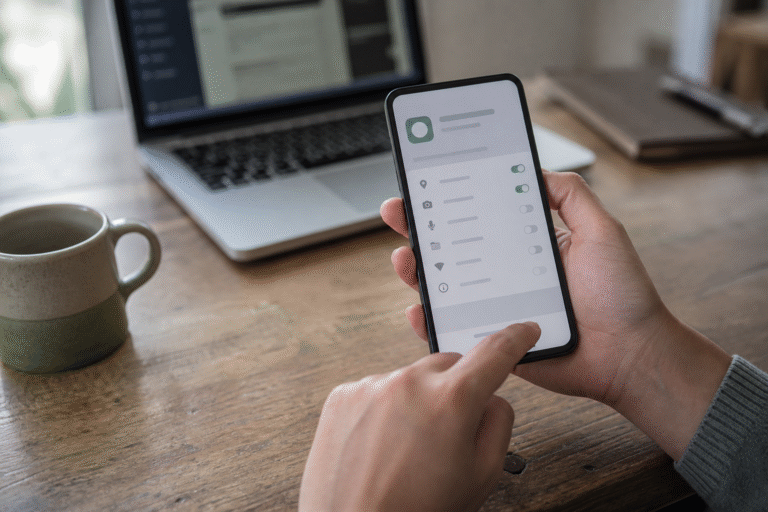
Open Settings, Apps, select the app, and choose Permissions. The exact path varies by manufacturer. Review both allowed and denied access, and remove permissions you no longer use.
Android’s Privacy Dashboard can also show recent access to the camera, microphone, and location on supported versions. Unexpected background access deserves investigation.
Protect OTPs and Login Details
A one-time password is designed for the person signing in. Do not share an OTP, password, recovery code, or screen-sharing access with anyone claiming to be support. A legitimate support agent should not need these details to explain a permission or installation issue.
Use a unique password where passwords are supported. Keep the phone’s screen lock active, avoid logging in on shared devices, and sign out of sessions you do not recognize. Use only the operator’s official recovery route.
Be Careful With Identity and Payment Information
Some operators may request identity information to meet account or local requirements. Before uploading documents, verify the operator, why the information is required, how it will be stored, and how to request deletion where applicable.
Do not send identity photos, bank details, card numbers, or payment screenshots through an unverified messaging account. AllPlayRummy is an independent information website and cannot process or verify third-party account transactions.
Verify Support Channels
Use support links from the official app or operator website. Be cautious with phone numbers or messaging accounts copied from comments, advertisements, or unrelated pages. Impersonators may use urgency, promise account recovery, or ask for remote access.
Before sharing even non-sensitive account information, confirm that the domain and contact identity belong to the operator. Keep a record of the official support request without including passwords or OTPs.
What to Do After Removing an App
Uninstalling removes the app but may not close the online account or delete information held by the operator. Review the privacy policy for account closure and deletion options. Revoke any permissions or linked sign-in access that remains.
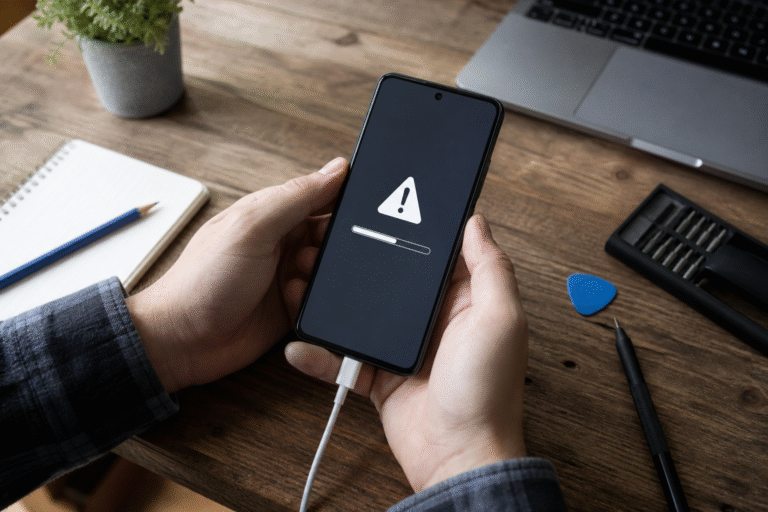
If you installed an unverified file and notice unusual behavior, remove it, run the phone’s built-in security check, change affected passwords from a trusted device, and contact the relevant official provider.
Account Safety Checklist
- Verify the app developer and operator.
- Grant only permissions linked to a feature you use.
- Review permissions after installation and updates.
- Never share passwords, OTPs, or recovery codes.
- Upload identity information only through a verified operator process.
- Do not allow remote device control for routine support.
- Check local age and gaming requirements.
Frequently Asked Questions
Does denying a permission stop the app from working?
It may disable the related feature. A camera-based upload cannot work without camera or photo access, but unrelated features should not require unexplained sensitive permissions.
Is SMS access needed to receive an OTP?
You can usually read and enter an OTP yourself without granting broad SMS access. If automatic reading is offered, review the scope and decide whether the convenience is necessary.
Can an independent website fix an app account?
No. Independent guides can explain general steps, but account access, verification, transactions, and data requests must be handled by the official app operator.
Summary
Permissions should be specific, understandable, and connected to a feature. Review them regularly and keep login, identity, and payment information within verified operator channels. When a request is unclear, denying it and asking questions is safer than approving it automatically.
Last reviewed: August 30, 2026. Editorial responsibility: AllPlayRummy publishes independent informational guides and is not the operator of third-party apps. Permission behavior, Android settings, and operator policies can change; verify current information with the official provider.